The folder that isn't there
You've got your WebDAV account set up, you're one field away from never uploading a flight by hand again, and then the sync app asks for the local folder. You go looking for XCTrack's tracklogs and... nothing. Android/data/… either sits there empty or the picker skips straight past it, like a thermal that drifts off just as you arrive.
Your flights are absolutely in there. Android simply won't let another app look until you say so. Here's how to say so. Two minutes, once, and never again.
Why Android hides it, and why this is safe
Since Android 11, apps can't rummage through each other's folders. That's scoped storage: every app gets its own space, and reaching beyond it has to be granted deliberately, by you, one folder at a time. XCTrack's .igc files live in exactly that kind of protected space, which is why your file manager acts like they don't exist.
You're not bypassing anything. No root, nothing disabled, no dodgy hidden setting. You're using the mechanism precisely as designed: Android asks you, the owner of the phone, to point at one specific folder and confirm it. One app (your sync app) gets one folder (XCTrack's tracklogs), not your photos, not your messages, not anything else. And you can take it back at any moment, from the same screen you granted it on. Narrow, deliberate, reversible.
First: check where XCTrack actually saves your tracklogs
Nine times out of ten it's:
/Android/data/org.xcontest.XCTrack/files/Tracklogs/
But "nine times out of ten" isn't "always": the path shifts between devices and XCTrack versions, and if you've ever moved your tracklogs onto an SD card it'll be somewhere else entirely. So don't trust a hard-coded path when the instrument is right there in your hand: open XCTrack → About, and read the line marked "XCTrack data folder" (Dossier de données XCTrack on a French phone).
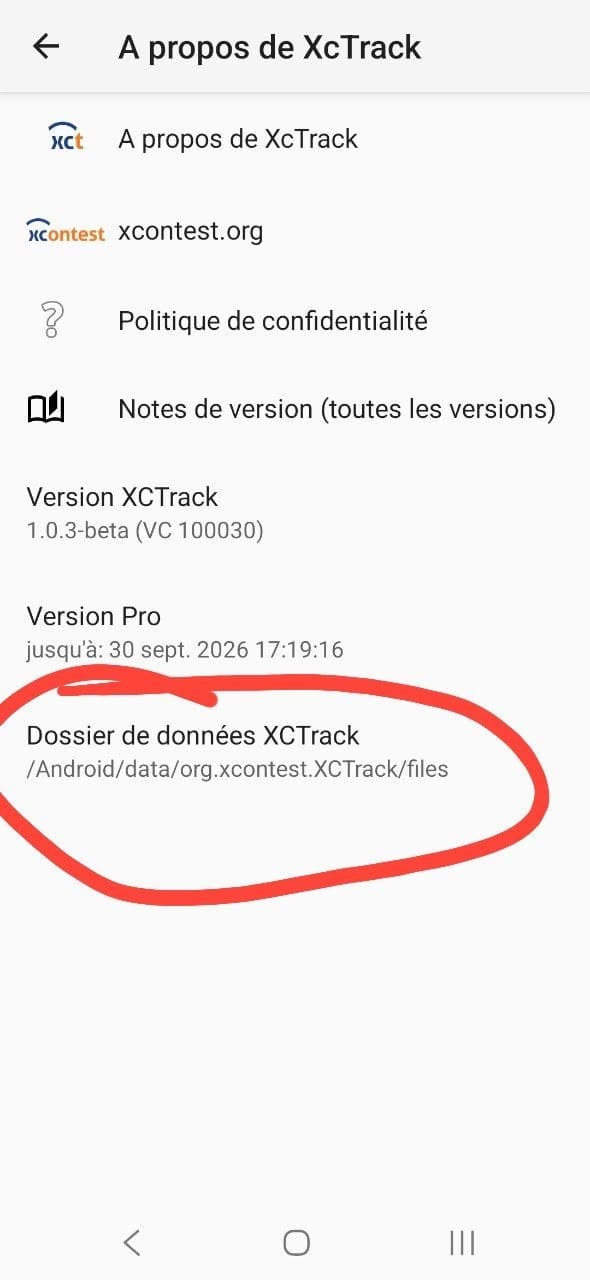
Mind the last hop. That screen shows the data folder. Your tracklogs live one level down, in its
Tracklogssubfolder, so whatever the About screen tells you, stick/Tracklogson the end.
The walkthrough, in FolderSync
The screenshots below are FolderSync 4.12 on a French phone, so each label comes with the French in brackets the first time. Whatever language your phone speaks, the rows sit in the same places.
Step 1: Open Permissions
In FolderSync, open the app menu (the panel with the version number at the top) and tap Permissions (Autorisations).
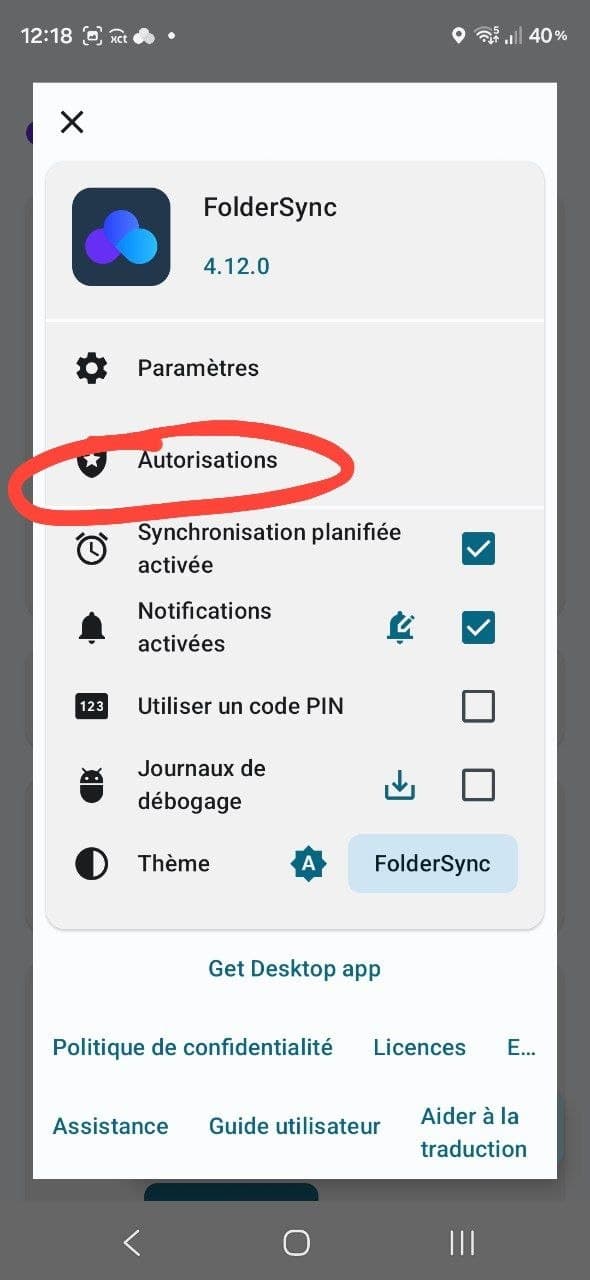
Step 2: Add a user-defined folder
Scroll down to Added folder permissions (Autorisations de dossier ajoutées) and tap Add user-defined folder (Ajouter un dossier défini par l'utilisateur).
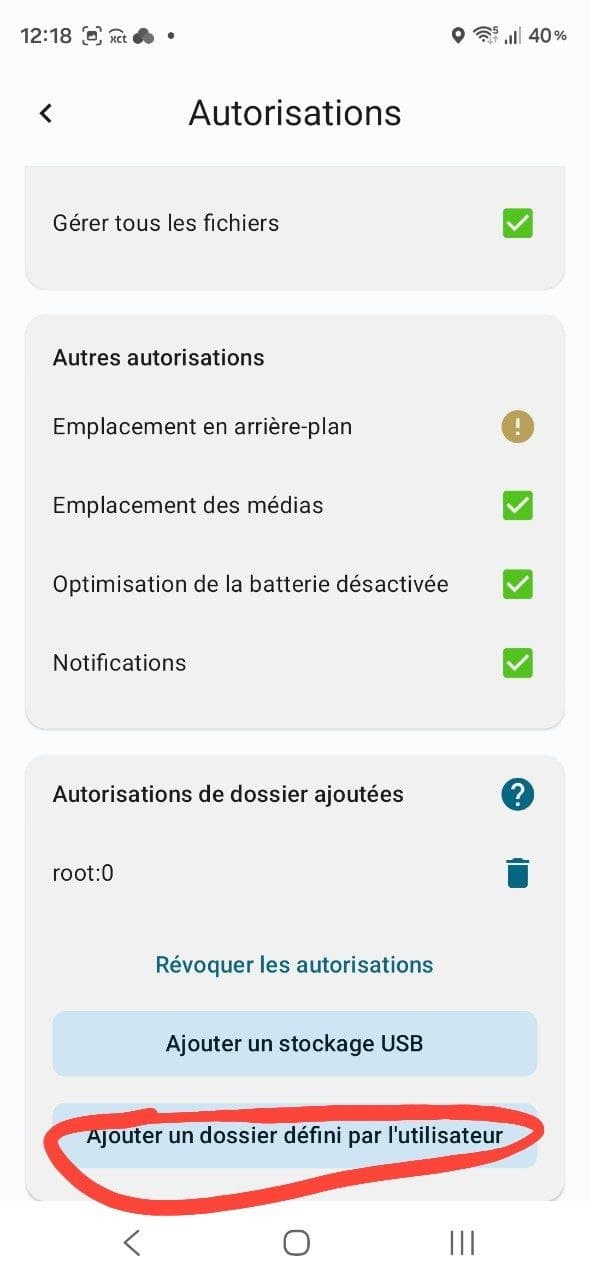
Notice what's sitting just above that button: Revoke permissions (Révoquer les autorisations). That's your undo, in plain sight, before you've even granted anything.
Step 3: Type the path, then pick XCTrack
A box appears asking you to type the path manually. Give it:
Android/data/org.xcontest.XCTrack/files/Tracklogs
…or whatever your About screen showed, plus /Tracklogs.
Android's own file picker then takes over and asks you to choose a folder. In the Open from (Ouvrir à partir de) drawer on the left, tap the XCTrack entry.
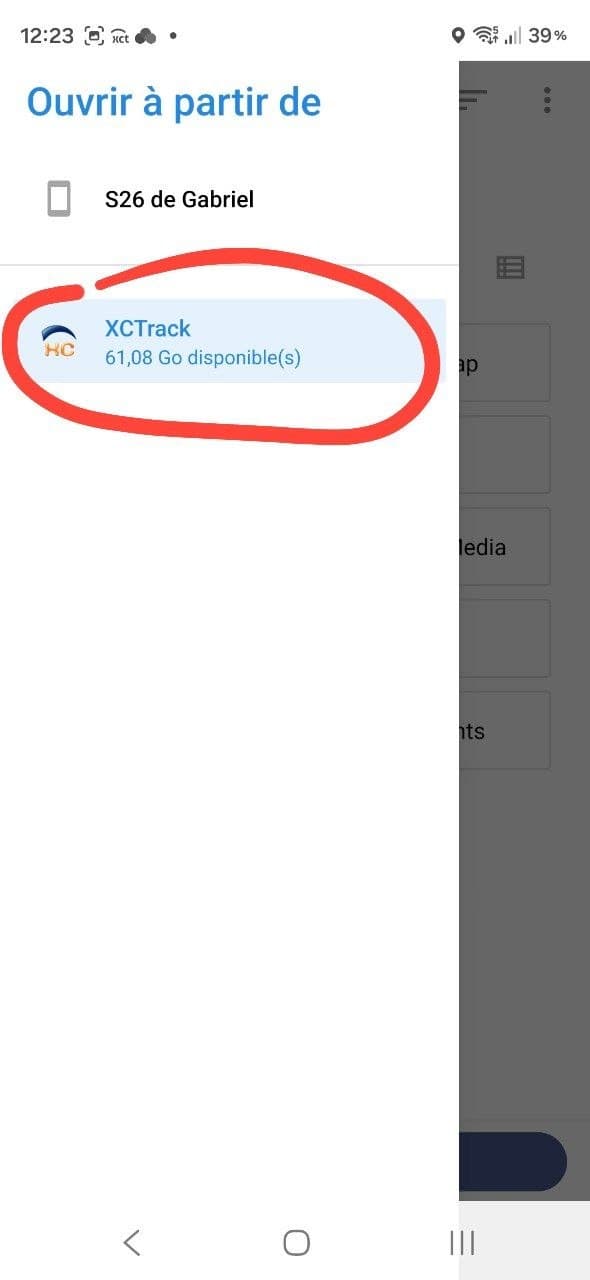
Step 4: Use this folder
You land inside Tracklogs, staring at your actual flights, dated files, one per launch. That's your confirmation you're in the right place. Tap USE THIS FOLDER (UTILISER CE DOSSIER) and confirm the Android dialog.
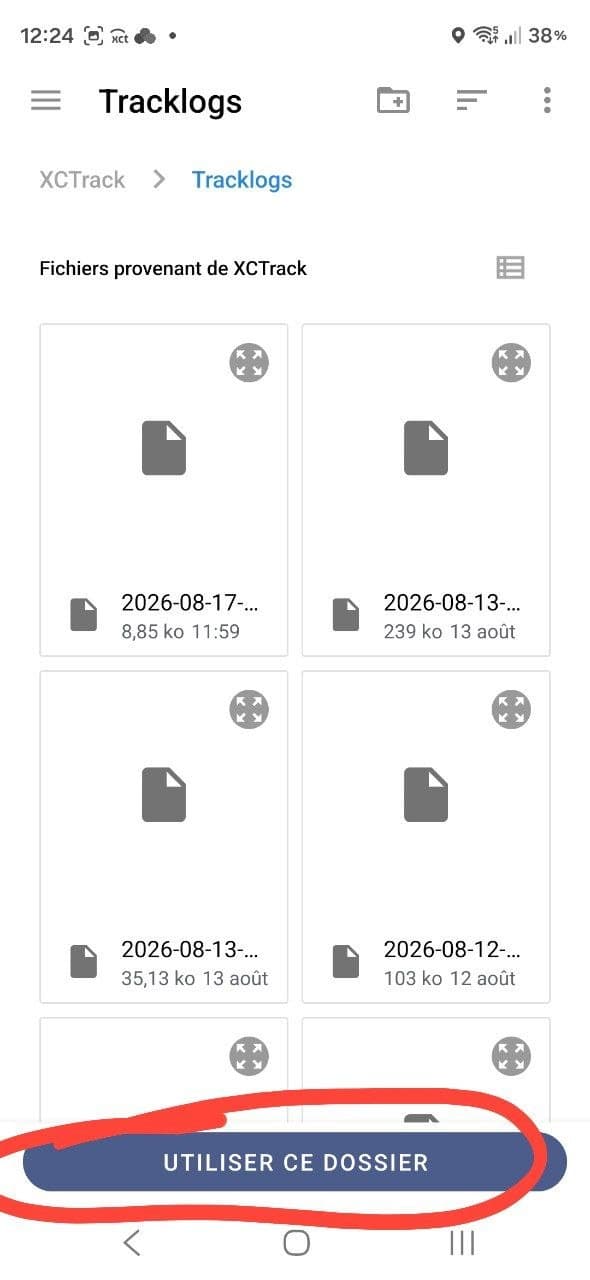
That's the hard part done. Back in FolderSync the folder is now selectable as the local folder of your sync pair, so head back to Auto-Sync Your Instrument and finish creating the pair.
If it goes sideways
The picker looks empty, or there's no XCTrack shortcut. Almost always a typo in the path you typed by hand. Go back to XCTrack's About screen, read the folder again character by character, and don't forget the Tracklogs on the end.
Your phone words things differently. Manufacturers love renaming buttons: you might get "Allow access to XCTrack folder" or something in that spirit. The shape of the flow is identical: find the folder, confirm the grant.
You use a different sync app. DAVx5, RoundSync, the Autosync family: same Android limitation, same fix. Look for their version of "add folder permission" or "grant folder access". Once the picker opens you're on familiar ground, because that screen belongs to Android, not to the app.
Your tracklogs live on an SD card. Skip the user-defined path and use Add USB storage (Ajouter un stockage USB) instead, the button right above it, built for exactly that.
Wheels up
One grant, two minutes, and your phone stops pretending your flights don't exist. Then it's back to the good bit: fly, land, connect to Wi-Fi, and find the track already sitting in your logbook.
Hat-tip to Gabriel, who worked this out on his own phone and shared the screenshots so the rest of us don't have to.
Blue skies and full logbooks. 🪂